Alt codes for pc


Get all the alt codes upto 200 characters,you can get upto 250 numbers
You should use by using LEFT ALT and NUM lock keys(right)

SAVE THIS IMAGE FOR FUTURE USE

Alt codes in pc
Save image and you are done.
More..

Add sticky bar with rss email subscription box in blogger.

add rss subscribe email sticky bar for blogger If you want add the email subscription form in blogger at the sticky bar.These can increase the subscribers to your blog.Which can make increase in traffic.I think it look good to your blogger.
you can add these sticky bar with email subscription box either bottom or top of your blogger.

More..

Add stylish neat css jquery drop down menu2 for blogger.

Add stylish css jquery drop down menu2 for blogger Earlier i have posted the css3 animated jquery drop down menu1 for blogger.Today i came to give the new drop down menu for mmb respected blog visitors.This new drop down menu2 is looks very open when mouse hover at its sub class and looks good very stylish open space drop down with borders.

More..

How to add 4in1 social network slide out widget in blogger?

4in1 slide out social share widget
4in1 slide out social share widget1
4in1 slide out social share widget2
  4in1 slide out social share widget44in1 slide out social share widget3
Before you have seen the facebook and twitter slide out like box and followers box respectively at my older posts. Today i am interesting post about all three social networking sites and one rss subscription email box in your blogger.so add this social 4in1 slide out widget for your blogger.
4in1 slide out social share widgetdemo


More..

How to customize the blogger comment form?


customize comment form 
customize comment form1Make the customization work on the your blogger comment form with different stylish backgrounds on the border with css.These can make your template look a beautiful to your blog visitors when they commenting on your blogger.so,what you are waiting make your blogger comment form to look different by follow my tutorials.
Part1
Css code:-
Go to blogger->> Template or page elements->> Edit Html
Search for the code ]]><b:skin> and paste the below code above ]]><b:skin>

#mmb-form iframe{
background:#ffffff url(image link ) repeat;
border:1px solid #ddd;
-moz-border-radius:6px;
-webkit-border-radius:6px;
box-shadow: 5px 5px 5px #CCCCCC;
padding:5px;
font:normal 12pt "ms sans serif", Arial;
color:#2F97FF;
width:560px; height:213px !important;
}
#mmb-form a{
color:#fff;
}
you  can change the red color  highlighted content.
And add the image link as you like for background.
save Template.
Part2
Now search for the code <div class='comment-form'>
and replace it with below code

<div id='mmb-form’>
Save template and you are done.
More..

Add to blogger button code generator for bloggers.

add  to blogger code generator you have seen the add to blogger button in some blogs.you can get it to your blogger.Just add the details and html/java script in the below boxes and click generate button and get the code and add it in your blogger post.Then you can give html/java script by pressing only add to blogger button at your blogger can send the hidden information directly to your visitors blogger.
Form generator for "Add to Blogger" button by Modify my blogs


Copyright © 2012 All Rights Reserved by Modifymyblogs @ Modifymyblogs
More..

How to 'create and approval for facebook page'?


Every blogger or website owner wants to have a social sharing fan page like facebook,twitter and google+ etc,but there is no risk in making a website social page on twitter and google+.Even on facebook it is not hard but sometimes new vistiors to facebook fan page feel it is very hard they leave it and cannot see there visit at that location again.Because of the trouble that get while creating facebook fanpage and it shows

our automated system will not allow the name 'you selected name'.we have suggested the "your selected name"Learn more.

so don,t worry there is a easy way to accept your choice by facebook by following simple ways

Part1

Go to facebook create page and login with your facebook  id and password and it directs to the create page according to your specifications choose your specification and write name of your fan page and fill more details.

Then real trick starts from here sometimes it accept the names easily.But it is not easy to accept the page name easily.

Part2

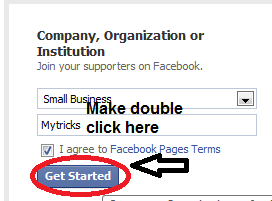
To approval the your fanpage name make double click get started button continously then it accepts the page and redirects to the further details of your fanpage.


 You can watch video of this article


More..

Add recommended post slide out widget for blogger

Make the visitors to be look at the other posts as the recommended by you ,by adding the scroll down of sidebar open a popup recommended post sliding at the footer with minimize button.So follow below tutorials to add a recommended post slide out widget for blogger.
recommended post slide out  for blogger
Part1
1.Go to blogger->> Design or Template –>>  Download full Template
2.After downloading template name the file name as you like and keep it in a specific location.
3.Leave it and go to part2
Part2
4.Now go to Simple reach site.
5.Sign up and conform the email at your email account.
6.Now choose blogger as your platform and follow the instructions given by simple reach.
7.Upload the template that downloaded at the Part1 and
8.save the new template given by simple reach.
Part3
9.Now go to Blogger->> Design or Template –>>
8.Upload template that downloaded at simple reach.
9.You are done.
Note:-This take some time to see on your blogger
More..

How to get gooleplus+ profile id number?

Google+ profile id is specific id allocates different id to every one,it is also used to create the google+ widgets and goolge+ buttons.The way to get your google+id is go to googleplus  and in the top menu go to profile you can see below image on your profile and click on the marked tab as in the image.
Part1


Part2
After clicking there you can see the some number id on the url locations seen in the below image.


More..

How to get googleplus+ add to circles widget?


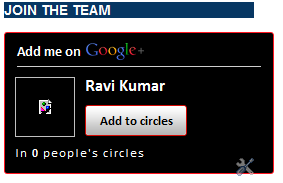
Add the google+ add to circles widget to your website or blogger may help your site visitors to add to your google profile circles.This widget has also a features of customization with colors according to match your template.so to add google+ widget.
Go to google+ official widget site  and click on Google widget button and add your google+ profile id if you don't know your id you can see my older post how to get your google+id? and add your custom colors and click on get code button,copy the code and paste it into your blogger or website.


More..

How to add a three column footer to blogger?

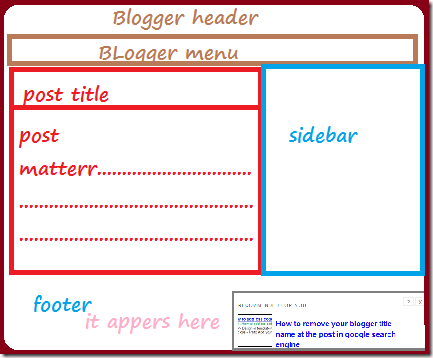
If you want to add the three column footer to your custom blogger template.Try the below tutorials to add the three column footer template to your blogger.
add three column footer to blogger
Part1
Login to blogger->> Template or Design –>> Edit Html
Search for the following code</head>
Add below code after </head>


#footer-columns{
    border-top:1px dotted #999999;
    clear:both;
    margin:0 auto;
}
.column1{
    padding: 0px 5px 3px 5px;
    width: 30%;
    float: left;
    margin:3px;
    text-align: left;
}
.column2{
    padding: 0px 5px 3px 5px;
    width: 30%;
    float: left;
    margin:3px 3px 3px 5px;
    text-align: left;
}
.column3{
    padding: 0px 5px 3px 5px;
    width: 30%;
    float: right;
    margin:3px;
    text-align: left;
}
.addwidget {
    padding: 0 0 0 0;
}
#footer-columns ul {
    list-style:none;
    margin:0 0 0;
    padding:0 0 0;
}
#footer-columns li {
    margin:0;
    padding-top:0;
    padding-left:0;
    padding-bottom:.25em;
    padding-right:15px;
    text-indent:-15px;
    line-height:1.5em;
}
body#layout #footer-columns {
    width: 100%;
    margin-left: auto;
    margin-right: auto;
}
body#layout .column1 {
    width: 32%;
    float: left;
}
body#layout .column2 {
    width: 32%;
    float: left;
}
body#layout .column3 {
    width: 32%;
    float: right;
}
save and done
Part2
Now search for the below code
<b:section class='footer' id='footer'/>
Delete above code and replace it with below code
<div id='footer-columns'>
<div class='column1'>
<b:section class='addwidget' id='col1' preferred='yes' style='float:left;'>
</b:section>
</div>
<div class='column2'>
<b:section class='addwidget' id='col2' preferred='yes' style='float:left;'>
</b:section>
</div>
<div class='column3'>
<b:section class='addwidget' id='col3' preferred='yes' style='float:right;'>
</b:section>
</div>
<div style='clear:both;'/>
</div>
<b:section class='footer' id='footer'/>
Save template and you are done.
More..